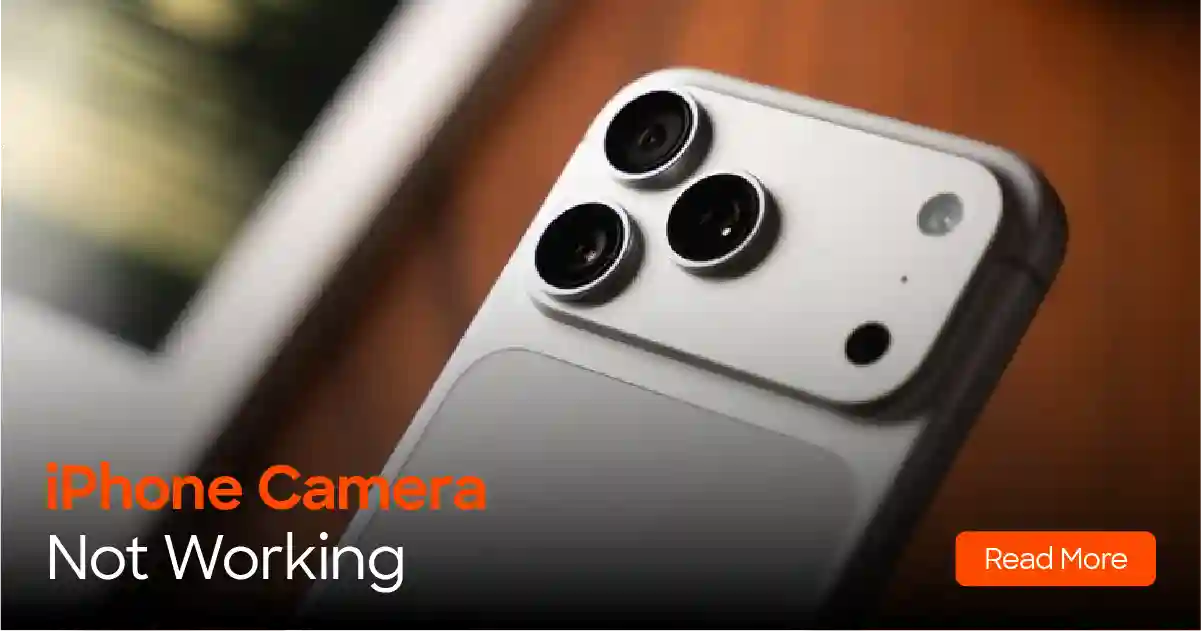
An iPhone camera not working can ruin a moment fast. You open the app and see a black screen, a blur, or nothing at all. Most of the time, a small software glitch is to blame. Other times, it’s a dirty lens or a damaged part. This guide helps you tell the difference. If the easy fixes fail, our team offers iPhone repair in Newport News with a free diagnostic.
Why Is My iPhone Camera Not Working? (Quick Answer)
Most camera problems come from a frozen Camera app, a small iOS bug, a blocked lens, or a Screen Time setting. Less often, a cracked lens or a failed camera part causes it. Start with the simple fixes, since they take only a few minutes.
Top 3 fixes:
- Close and reopen the Camera app
- Restart your iPhone
- Remove the case and clean the lens
8 Fixes to Try Right Now
Fix 1: Close and reopen the Camera app
Swipe up from the bottom of the screen and pause in the middle. Then swipe the Camera app up to close it. Open it again after a few seconds. Apps freeze now and then, and this simple step clears many black screens.
Fix 2: Restart or force restart your iPhone
Hold the side button and one volume button, then slide to power off. Wait about 30 seconds before turning it back on.
If the camera still won’t load, try a force restart. Press and release volume up, then volume down. Next, hold the side button until the Apple logo shows. These steps work on iPhone 8 and newer models.
Fix 3: Switch between the front and back cameras and lenses
Tap the flip button to change cameras. Then try each zoom button, like 0.5x, 1x, and 2x. The app sometimes freezes on one lens, and switching can wake it up. Also try Photo, Video, and Portrait modes.
Pay attention to what fails. If the front camera works but the back one doesn’t, the problem may sit in the rear camera itself.
Fix 4: Remove the case and clean the lens
Take off your case, thick screen protector, or any lens attachment. Magnetic accessories can also get in the way. Next, wipe the front and back lenses with a soft microfiber cloth. Fingerprints and pocket lint cause more blur than most people expect.
Apple lists the same basic steps in its support article, If the camera or flash on your iPhone, iPad, or iPod touch isn’t working.
Fix 5: Check that Screen Time isn’t blocking the camera
Go to Settings > Screen Time > Content & Privacy Restrictions > Allowed Apps. Make sure Camera is switched on. If the Camera icon vanished from your Home Screen, this is the most likely reason.
Apps like Instagram or Zoom may also lack permission. Open Settings > Privacy & Security > Camera and turn the app on.
Fix 6: Update iOS
Open Settings > General > Software Update. Plug in your phone and connect to WiFi first. Apple often fixes bugs in these updates, so a camera glitch may disappear afterward. Back up your phone before you start, just to be safe.
Fix 7: Reset all settings
Go to Settings > General > Transfer or Reset iPhone > Reset > Reset All Settings. Your photos and apps stay put. Your WiFi passwords, wallpaper, and other settings return to default. Try this only after Fixes 1 to 6, since it takes a few minutes to set things up again.
Fix 8: Check for a cracked lens or physical damage
Hold the phone under a bright light and look at the back camera glass. Cracks, chips, or dust under the glass point to hardware damage. A recent drop makes this more likely.
A hard fall can also hurt the screen. Our guide on a green line on your iPhone screen shows what that damage can look like.
Don’t do this
- Don’t pry at a cracked lens or pick at the glass.
- Don’t blow compressed air into the camera area.
- Don’t poke the lens with a pin or toothpick.
- Don’t bury a wet phone in rice. It rarely helps and can push moisture deeper.
Why Is My iPhone Camera Black?
A black screen often comes from a frozen app or a camera stuck between the front and back modes. Several other causes show up as well:
- Heat: A phone left in a hot car may block the camera until it cools down.
- Low Power Mode: Some people report that turning it off helps.
- Full storage: A packed phone can make the Camera app lag or crash.
- Another app: Zoom, Snapchat, or a similar app may still be using the camera.
- VoiceOver: Some users say turning it off brought the preview back.
If the screen stays black after all that, a damaged camera part is possible. This matters most after a drop or water exposure.
Why Is My iPhone Camera Blurry or Not Focusing?
Blur usually starts with a smudge. Clean the lens first, then retake the photo. Next, check for a case, film, or magnetic mount that sits too close to the lens.
Close objects can also trick the focus. Step back a little, tap the screen on your subject, and hold still for a second.
Strong vibration may harm the camera too. Apple has warned that things like motorcycle mounts can damage image stabilization. If every photo looks soft after a clean, the camera may need a technician’s look.
Front Camera Not Working vs. Back Camera Not Working
The two cameras fail for different reasons. Here’s a quick way to compare them.
- Front camera: Cases, screen protectors, and Screen Time settings are common causes. The cause is often minor, so software fixes work well here.
- Back camera: It has more parts, including the lens glass and several lenses. It takes more hits from drops, too. If the flashlight also fails, a hardware problem becomes more likely.
Software or Hardware? How to Tell
| What you see | Likely cause |
| Black screen that clears after a restart | Software glitch |
| Camera icon missing | Screen Time restriction |
| Front camera works, back camera stays black | Rear camera or its connection |
| Cracked glass or spots in every photo | Damaged lens |
| All photos blurry after cleaning | Focus or stabilization part |
| Camera and flashlight both dead | Possible hardware fault |
| Black screen after a drop or water | Internal damage |
When the Camera or Lens Needs Repair
Book a repair if you’ve tried all eight fixes and nothing changed. Do the same if you see cracked glass, a black screen after a drop, or a camera that shakes or rattles.
A technician can replace the back camera, the front camera, or only the lens glass. If just the glass cracked, a lens repair may cost less than a full camera swap. Our iPhone camera lens repair service covers current models, including the iPhone 17.
Still Not Working? Get a Free Diagnostic
Not sure what’s wrong? Bring your phone to our Newport News or City Center store. We check it for free and explain the problem in plain words. Then you decide what to do next. Learn more about iPhone camera repair in Newport News, or tap Get a Free Diagnostic to reach our contact page.
Frequently Asked Questions
Can a cracked iPhone camera lens be replaced?
Yes, in most cases. A technician removes the broken glass and fits a new one. Sometimes the whole camera module needs replacing, especially if dust or damage reached the sensor.
Why does my iPhone say the camera isn’t recognized?
This usually means the phone can’t talk to the camera part. A restart or iOS update clears some cases. If the message keeps coming back, a loose or damaged part may be the cause. A free diagnostic can confirm that.
Can water damage stop the iPhone camera from working?
It can. Moisture may fog the lens or harm the parts behind it. Turn the phone off and skip the rice trick. Then check out our iPhone water damage repair page, and bring the phone in soon.
How long does an iPhone camera repair take?
Most repairs take 30 to 45 minutes at our stores. The time depends on your model and the part. Owners of newer phones can read about iPhone 16 camera repair in Newport News.
Visit Us Today at Tech Solutions Newport News and City Center
Walk in anytime during store hours. No appointment is needed; the diagnostic is free, and every repair comes with a one-year warranty.
| Store | Address | Phone | Hours |
| Newport News | 12300 Jefferson Ave #216, Newport News, VA 23602 | (757) 243-2846 | Mon to Sat 10 am to 8 pm, Sun 12 to 6 pm |
| City Center | 707 Mariners Row #105, Newport News, VA 23606 | (757) 826-1671 | Mon to Sat 10 am to 7 pm, Sun 12 to 6 pm |
Need more than a camera fix? See our full iPhone screen and camera repair options.